Step-by-step guides · translating with your phone
How to translate a conversation live with your phone
Google Translate translates conversations live, for free, on Android and iPhone. Step by step, what Galaxy phones and iPhones with AirPods offer, and what to do with no signal.
Article produced automatically with artificial intelligence: topic, text and review. Every fact is checked against its official source, but Ibrahin does not review it before publication. How AI is used here

You are in a chemist's in Lisbon, in a taxi in Rome, or talking to the new neighbour who only speaks Romanian. A few years ago you would have used gestures. Today the phone in your pocket can listen to what you are told, translate it and say it out loud in your language almost instantly.
The short answer: open Google Translate, tap “Live translate”, choose the two languages and put the phone between you. Since 26 March 2026, headphones included, it works in Spain, on Android and on iPhone, and according to Google's help pages its list has 73 languages. You don't need to buy anything.
There are two other options that come built into certain phones. This chart compares how many languages each one translates in a conversation:
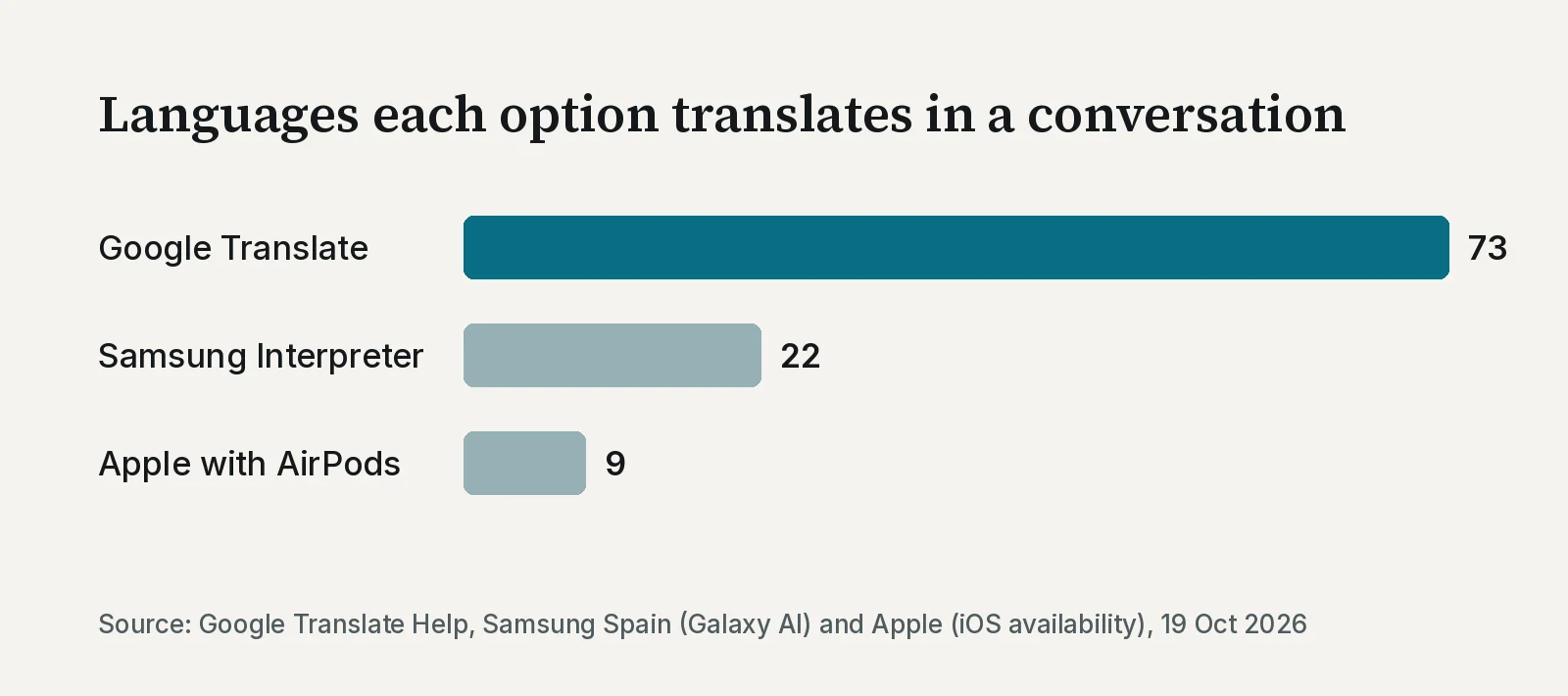
More languages does not mean a better translation: it means it is more likely that both your language and the other person's are on the list. Spanish from Spain is on all three.
The free option for any phone: Google Translate
This is the one that works for almost everyone, because it runs on Android and iPhone and doesn't need a particular model. Google says the headphone mode works with “any pair of headphones”, not just its own.
How to use it, step by step
- Update the Google Translate app. Google's help asks you to be on the latest version.
- Open Translate and, if you are going to use headphones, connect them.
- At the bottom, tap “Live translate”.
- Choose the mode and the two languages.
- To pause, tap “Speak”. To leave, tap “Back” at the top.
Which mode to choose
The app has several modes, and picking the right one is half the trick. These are the main ones described in Google's help:
| Mode | What it does | When to use it |
|---|---|---|
| Conversation | The translation plays through the speaker or the headphones. You take turns speaking. | A normal chat: the shop, the hotel, the neighbour. |
| Listening | You hear the translation in your headphones, or with the phone to your ear (on iPhone, you need headphones). | When you only need to understand: a guided tour, an announcement, a long explanation. |
| Text only | You read the translation. Nothing plays. | Places where you can't make noise. |
| Face to face | The screen splits in two: each person sees what the other says in their own language. | A table or a counter: you leave the phone in the middle. |
You don't have to tap anything to switch speakers: according to Google, the microphone detects on its own when one language stops and the other starts. On Android, the translation also keeps going if you switch apps or lock the screen.
With headphones the experience is much better in noisy places, because you hear the translation without holding the phone to your ear. Simple wireless earbuds will do.
If you have a Samsung Galaxy: Interpreter
Galaxy phones with Galaxy AI come with their own translator, which Samsung calls Interpreter. According to Samsung Spain's Galaxy AI page (in Spanish), it can show both languages at once on a split screen, so you can both read, and if you wear Galaxy Buds it speaks the translation in your ear while you see the text on the phone.
The same page says Interpreter works in 22 languages, Spanish among them. On 14 October 2026 Samsung announced Hungarian and Malay (in Spanish), arriving over the coming weeks and bringing the total to 24. The phone may ask you to download the other person's language pack the first time: do it on Wi-Fi, before you go out.
If you have an iPhone and AirPods: Apple's translation
Apple has its own “Live Translation” with AirPods: the other person speaks and you hear the translation in your earbuds. At first it wasn't available in the European Union. In November 2025 Apple announced it would reach the EU the following month, and today its availability page lists Spanish (Spain) with no restriction for Europe.
What almost nobody checks first: not every iPhone or every pair of AirPods will do. According to Apple's help, you need all of this at once:
- An iPhone 15 Pro or later, with iOS 26 or later and Apple Intelligence turned on.
- AirPods 4 with Active Noise Cancellation, AirPods 5, AirPods Pro 2, AirPods Pro 3 or AirPods Max 2.
- AirPods on the latest firmware and Apple's Translate app installed.
- The other person's language and yours, downloaded beforehand.
To start, open the Translate app, tap “Live”, then “Start Translation”. You can also press and hold the stem on both AirPods at the same time (on AirPods Max 2, the listening mode button), or say “Siri, start Live Translation”. The list of languages is shorter than Google's: nine languages, including Spanish, English, French, German, Italian and Brazilian Portuguese.
If your iPhone is older than the 15 Pro, don't worry: Google Translate works on it, with any headphones.
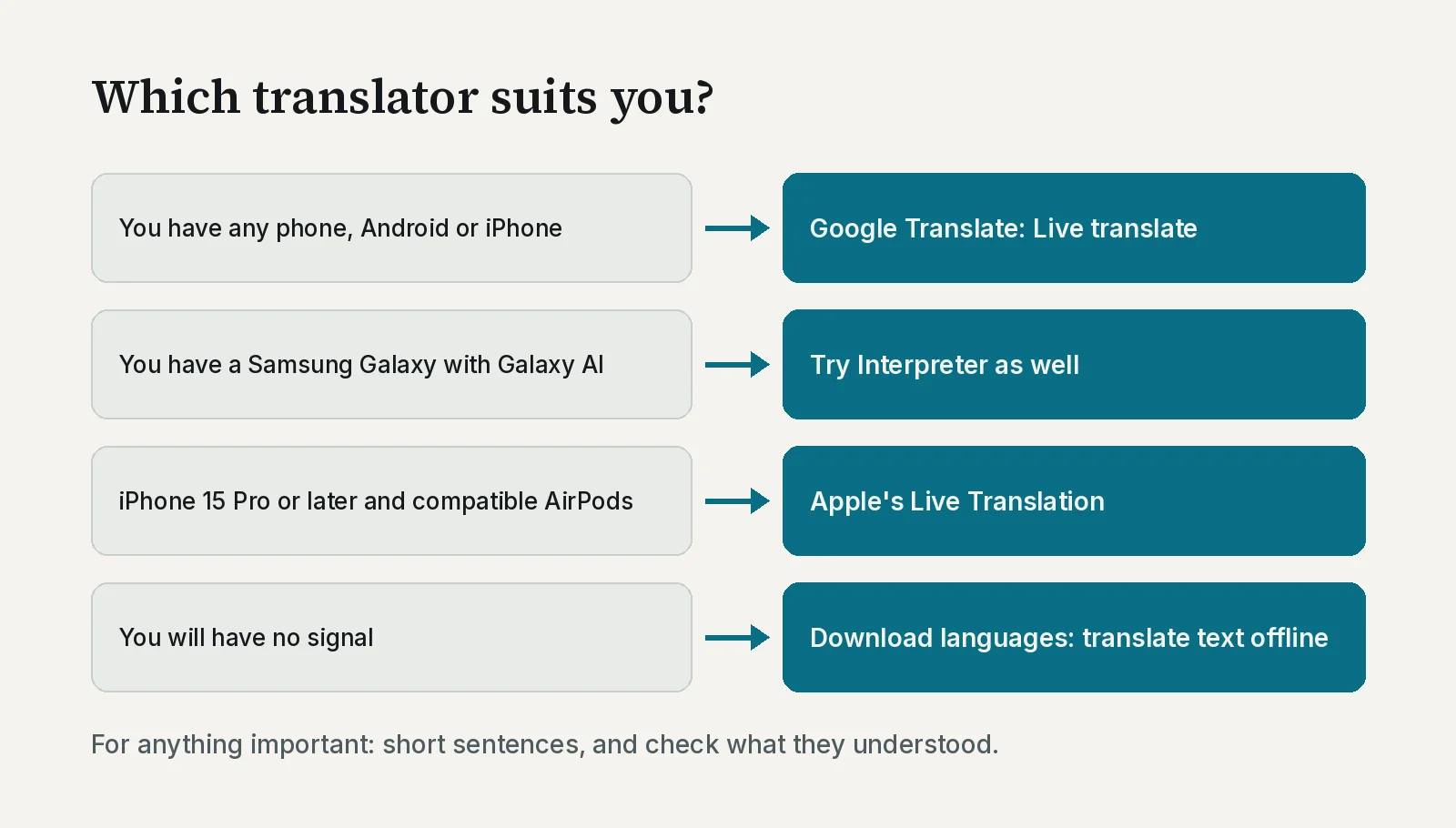
Which one suits you
Before you travel: data and no signal
Here is the most common trap. Google's “Live translate” offline is currently only available on the Pixel 9, 10 and 11, and only for some language pairs with English. On any other phone, expect to need data.
- Within the European Union: if your SIM is from an EU country, you use your data as you would at home, with no extra charges (your provider may set a data limit). This is “roam like at home”, which also covers Iceland, Liechtenstein, Norway, Moldova and Ukraine.
- Outside the EU: the European Union warns that data roaming “can be expensive”. Ask your provider before you go.
- Plan B without data: in Google Translate you can download languages to translate text offline, including by pointing the camera at a sign or a menu. Download them at home, on Wi-Fi.
Five tricks to be understood
- Short sentences. One idea per sentence. The longer it is, the easier it is for the translation to get muddled.
- No idioms or double meanings. “That day's a no-go for me” translates worse than “I can't do that day”.
- Wait for it to finish. Let the translation play in full before you reply.
- Find a quiet spot. Background noise causes most of the mistakes.
- Check what matters. An address, a time, a dose: ask the other person to repeat it or write it down. Apple warns that its translations “may be inaccurate, unexpected or offensive”, and the same goes for any machine translator.
Try it now: a sentence to start with
Before starting a conversation, it helps to tell the other person you are going to use a translator. Copy this text, paste it into Google Translate, choose their language and show them the screen:
Hello. I don't speak your language well and I'm going to use the translator on my phone. Please speak slowly, in short sentences, and wait a moment for the translation to appear. If something is important, like an address or a time, could you write it down for me? Thank you.
And to practise at home, with no pressure, choose “Conversation” mode with English and Spanish, and read this sentence out loud. You will see how it works before you really need it:
Good morning. I'm looking for a chemist that's open near here. Is it far? Can I walk there?
The recommendation
Start with Google Translate: it is free, works on almost any phone and translates the most languages. Try it once at home before your trip, in “Conversation” mode. If you already have a Galaxy, or a recent iPhone with compatible AirPods, try its translator too and keep whichever feels most comfortable. Don't buy expensive earbuds just to translate: the ones you have are enough for Google's option. And for anything serious, like a medical appointment or signing a document, the translator helps, but it doesn't replace an interpreter.
As an Amazon Associate I earn from qualifying purchases.
Sources
All checked on 19 October 2026.
- Live translate with headphones, Google blog (26 Mar 2026)
- Hear live speech to speech translations with live translate, Google Translate Help
- Download languages to use offline, Google Translate Help
- Galaxy AI, Samsung Spain (in Spanish)
- Samsung expands language support for Galaxy AI features, Samsung Newsroom Mexico (14 Oct 2026) (in Spanish)
- Use Live Translation with your AirPods, Apple Support
- Live Translation on AirPods expands to the EU, Apple Newsroom (Nov 2025)
- iOS Feature Availability, Apple
- Roaming costs in the EU, Your Europe (European Union)